How to Sync Podcasts to an iPod
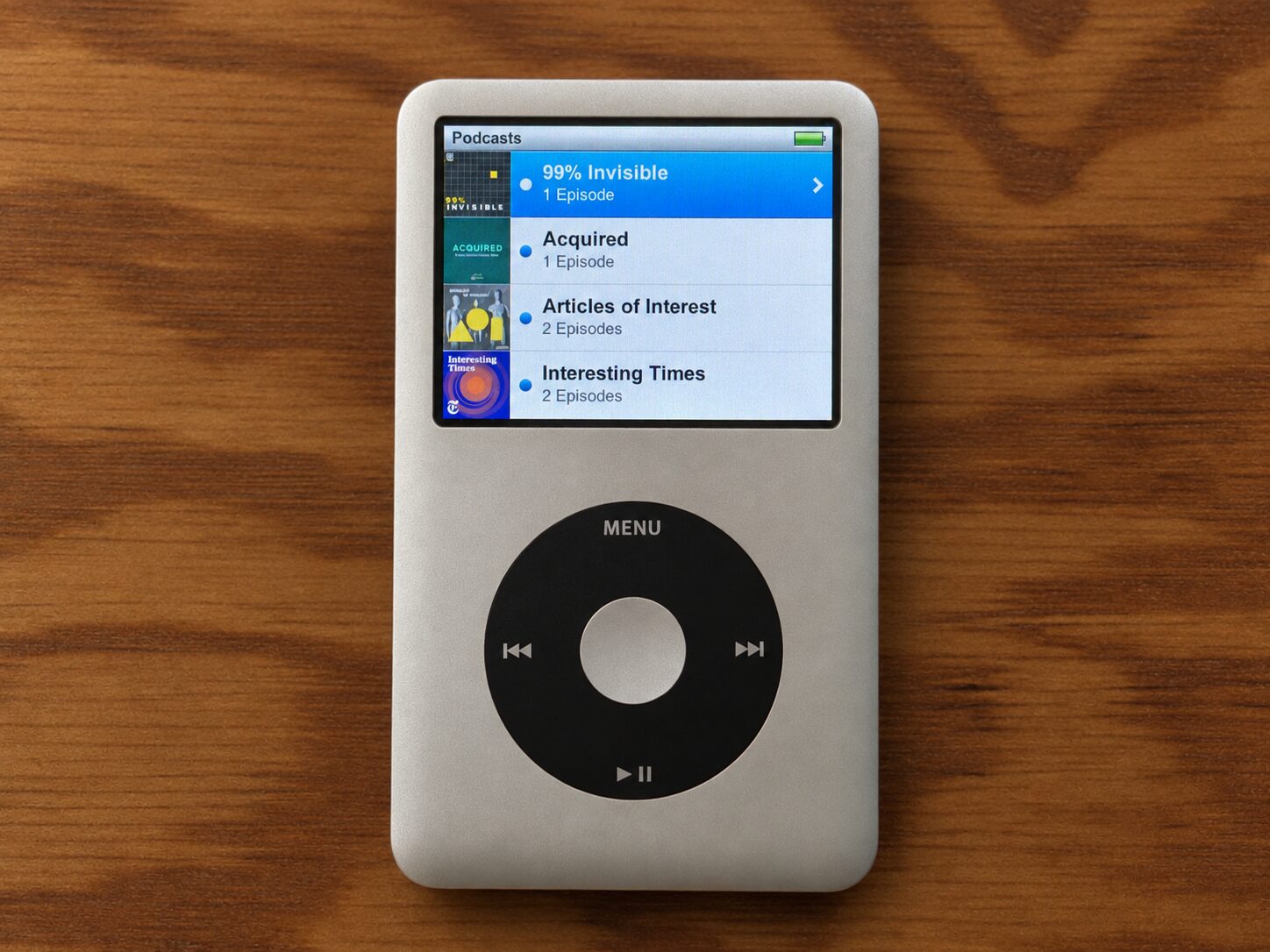
When I first started restoring my iPod Classic, I was surprised to learn that it can still sync natively with a modern Mac. Apple deserves credit for preserving compatibility with iPods so long after they were discontinued. Supporting old devices takes deliberate effort, and I truly appreciate it.
A bit of history: iPods originally synced through iTunes. With the release of macOS Catalina in 2019, iTunes was discontinued, and iPod syncing moved to Finder. Media management was split across the Music, Podcasts, and TV apps.
This division of labour mostly works well, except for one sore spot: podcasts.
Bad Metadata
When I first synced podcasts from my Mac to the iPod, I noticed some peculiarities:
- Episode titles looked like production filenames, such as
99_pi_audiomix_2008 - Show names were often in all caps, such as
99% INVISIBLE - Artwork was often missing
- Some episodes appeared under a playlist named
Root
All these issues trace back to one problem. When the Podcasts app on macOS downloads an episode, it stores clean metadata in a local SQLite database~/Library/Group Containers/243LU875E5.groups.com.apple.podcasts/Documents/MTLibrary.sqlite. It downloads the audio as an MP3 file to a cache folder~/Library/Group Containers/243LU875E5.groups.com.apple.podcasts/Library/Cache/. But that file has only the producer’s original tags, which are often incomplete or wrong.
When syncing podcasts, Finder reads the tags in the MP3 files rather than the clean metadata in the SQLite database. So titles, artwork, and show names can look right in the Podcasts app but wrong on the iPod.
The solution is to open the MP3 folder above and use an app like Kid3 to edit each file’s tags. After that, the podcasts sync to the iPod with the correct metadata.
However, editing each file by hand quickly got tedious. And besides, the correct metadata was already sitting in the SQLite database. So I wrote a small script to copy it into the MP3 tags:
git clone https://github.com/matteosandrin/fix-podcast-tags
cd fix-podcast-tags
pip install mutagen

python3 fix_podcast_tags.py
Note: sometimes Finder will still sync the wrong episode titles because it has a stale local cache. To clear it, open Activity Monitor and force quit these processes:
AMPLibraryAgentAMPDevicesAgentAMPDeviceDiscoveryAgent
After that, Finder will reload the episode titles from the MP3 tags.
Podcasts are not music
The podcasts now appeared in the iPod’s Podcasts menu with the correct metadata and artwork. But they also appeared in the Music menu as albums.
The problem is in the way Finder syncs podcast tracks. Every track synced to the
iPod has a media_type field that tells the iPod what kind of file it is:
0x01 for music, 0x02 for videos, 0x04 for podcasts, etc.
For reasons unknown, Finder sets media_type to 0x05 for podcasts, combining
the music flag (0x01) and the podcast flag (0x04) with a bitwise OR. The
iPod interprets these tracks as both podcasts and music, so they appear in
both menus.
0x01  ->  0001
0x04  ->  0100
      OR  ----
0x05      0101
The solution is to open the iPod’s database at
/Volumes/iPod/iPod_Control/iTunes/iTunesDB and change those media_type flags
from 0x05 to 0x04. Unfortunately, changing the flags is only part of the
fix: the database also needs to be signed using the iPod’s FireWire ID.
I wrote a
small, general-purpose tool
for bulk editing the iPod’s database. You can use it to fix the podcast tracks’
media_type:
git clone https://github.com/matteosandrin/ipod-db-editor
cd ipod-db-editor
pip install -e .

ipod-db-editor set "media_type=4" \
 --filter "media_type=5" --in-place
After running this command, your podcasts will appear in the iPod’s Podcasts menu, and only there. You’ll need to rerun it after every sync because Finder overwrites these database changes.